
Facebook Lead Ads is a paid service Facebook offers to help marketers gather new leads and information about their contacts.
Ometria’s integration with Facebook Lead Ads works by automatically importing contact data into Ometria, so you don’t need to upload manually via CSV.
Before you begin
You’ll need a Facebook business account.
Create an API key in Ometria to use while setting up your connection with Facebook Leads.
Only users with administrator account permissions can access the API keys tab.
Data sent to Ometria
Ometria retrieves two types of data from Facebook lead ads:
- Custom fields - fields you create manually in Ometria.
- Default fields - fields which already exist in Ometria's database.
Warning: Ometria only receives the fields included in your Facebook lead ad campaign, and as all campaigns contain different information you might not receive all of the data listed below.
Custom fields
You need to manually create these fields once you've set up your Facebook leads connection in Ometria.
They are mapped to Facebook fields by default, see: Contact advanced mapping
| Field | Type | Description |
| fl:campaign_name | String | The name of the campaign. |
| signup_source | String | The sign-up source, e.g. facebook |
| fl:timestamp_subscribed | DateTime | The date and time the contact subscribed. |
Default fields
| Field | Description |
| The email address the lead provides in the “email” field in your ad. | |
| Phone number | The phone number the lead provides in the “phone” field in your ad. |
| Marketing opt-in (email) | Whether or not a contact is opted into receiving email marketing (subscribed). |
| Marketing opt-in (SMS) | Whether or not a contact is opted into receiving SMS marketing (subscribed). |
| Date subscribed (email) | The date that the contact subscribed to your marketing emails. |
| Date subscribed (SMS) | The date that the contact subscribed to your marketing SMS. |
| Country | The country Facebook has assigned to your lead e.g. US, UK. |
| First name | The name the lead provides in the “first name” field in your ad. |
| Last name | The name the lead provides in the “last name” field in your ad. |
| Date of birth | The date information the lead provides in the “Date of birth” field in the ad. |
| Collection |
This field is for API GET request purposes and does not display in Ometria. It refers to the collection the contact belongs to - in this case, 'Facebook leads'. |
Setting up your integration with Facebook leads
In Ometria, go to Settings and select the Connections tab:
Click Add new connection, then select Facebook Leads.
The Ometria authentication screen displays.
Authenticate Ometria
Click New authentication.
Change Your authentication name if you like. This name will help you identify your multiple API keys in case you add more than one.
Enter the API key you created at the beginning:
Select Create.
The Facebook authentication screen displays. Click New authentication.
Authenticate Facebook
Your authentication name is the name you entered when you added your original Facebook connection.
If you don't have an existing Facebook connection in Ometria, you'll see the name '[account number] user's Facebook account', e.g. '123 user's Facebook account'.
Select Create. The Facebook authentication pop up displays.
Log into your Facebook account to proceed.
You'll be prompted to choose a business to connect to Ometria. Select the first option if you plan to set up more than one connection (e.g. for multi-language accounts).
Next, select enter the ID for the business Page you want to connect your account to:
See also: Find your Facebook business page ID
In the next screen, select a Form you want to use from the dropdown:
Select Next.
Contact General Mapping
In this window you need to map your Facebook Lead Ads fields to the correct Ometria fields:
It's a good idea to keep your screen open (in Facebook Forms/Business) to compare.
Common field mappings:
| Ometria | |
| country | country_id |
| first_name | firstname |
| phone_number | phone_number |
| date_of_birth | date_of_birth |
| last_name | lastname |
| gender | gender |
| Language | preferred_lang |
Multi-language accounts
If your form is in another language, you can still map those fields to Ometria fields.
For example, if your form is in French:
| Ometria | |
| prénom | firstname |
| nom_de_famille | lastname |
You can find this in your Form settings in your Facebook business account.
Once you've finished mapping your general fields, click Next for advanced mapping.
Mapping full_name
You can also map the Facebook field full_name to the Ometria contact field "Full Name".
When you do this, Facebook sends the full name, e.g. Jane Smith, to Ometria as a string.
Ometria splits the full name into two fields:
- First Name: Jane
- Last Name: Smith
If the lead enters three names, e.g. Jane Ophelia Smith, Ometria splits the string into three fields:
- First Name: Jane
- Middle Name: Ophelia
- Last Name: Smith
If the lead enters four names, e.g. Jane Ophelia Manfreda Smith, Ometria splits the string into three fields:
- First Name: Jane
- Middle Name: Ophelia Manfreda
- Last Name: Smith
Contact advanced mapping
This screen maps additional data which needs to be sent from Facebook to Ometria in a properties object.
This is where you can map any custom fields you have in Ometria with fields from Facebook.
Select Finish.
Your Facebook Lead Ads connection is set up:
You can check your connection is working correctly in the Meta for Developers site.
Please refer to Facebook's documentation for guidance on this site.
Use cases
Lead conversion is the percentage of leads who go on to make a first order.
The goal is to increase the percentage and maximise the number of leads who go on to purchase.
Read on for some ideas and suggestions on how to improve your lead conversion rate in Ometria.
Welcome campaign
Your Facebook leads enter your welcome campaigns automatically and you can use the custom fields, e.g. sign-up source, campaign name, etc. to segment the campaign further.
When considering which campaigns to put in place, you will need to be mindful of your contacts' customer journey so far.
By signing up for emails, they have already shown an initial interest in the brand. This is the time to make a great first impression with them, as they are already engaged.
Key tactics:
- Tell your brand story - What makes your brand unique?
- Set the expectations for receiving your emails - e.g. exclusive offers, inspirational content, sneak peeks into new launches.
- Highlightcore unique selling propositions (USPs) - e.g. free delivery and returns. These could be the differentiator between a customer placing an order and not.
- Use incentives to further entice that conversion alongside your USPs - You can use segmentation to target leads only. Including a discounted offer can really help to drive up your lead conversion rates, but you can also try other incentives such as leveraging their community through customer reviews, free gifts, UGC (user-generated content), or special perks if they become customers (e.g. place your first order and get early access to our sale or VIP previews).
Segmentation
You can apply further segmentation to your automation campaigns for warm and cold leads.
- Warm leads are customers who have clicked on any content in your emails or visited your website in a set time frame (which you can determine).
- Cold leads are customers who haven't clicked on any content in your emails or visited your website in a set time frame (which you can determine).
The timings you set will depend on the type of products that you sell, i.e. if it is a considered purchase like jewellery or a consumable.
By segmenting in this way, you can use personalised product recommendations such as ‘recently viewed’ for warm leads and try other tactics such as leveraging your product data for first time shoppers and featuring products that resonate most with leads to assist a conversion.
Tip: Use the products report to check your top 10 products either by revenue or units that first-time buyers convert with.
SMS
You can add SMS sends into your welcome campaigns to target customers that are opted-in for SMS.
For opted-in customers who do not engage with your emails, you can use SMS as a final push to drive urgency and remind them of your welcome incentives.
Paid social
As your leads have been acquired through Facebook, this may well be their preferred channel.
If your privacy policy covers it, you can push non-opted email customers and unengaged customers back to paid social ads to drive urgency on your welcome incentive.
Reporting
Report on your Facebook leads using the customer filter in Ometria's segment explorer, cohort report and products report.
In the customer filter, use the Facebook Leads campaign name condition to select any/all of your Facebook leads campaigns:
How do critical metrics look for Facebook leads vs. non-Facebook leads?
In the segment explorer check the Customers repeat rate and the Revenue per customer (CLV) metrics for your selected campaigns.
These metrics are for all time, unless specified otherwise in the customer filter.
Are your lead campaigns generating customers?
Go to the cohort report and group by Date subscribed to email and Customer gained to see if your campaigns are actually generating you customers:
Are your lead campaigns generating repeat customers?
Go to the cohort report and group by Date subscribed to email and Customer repeated:
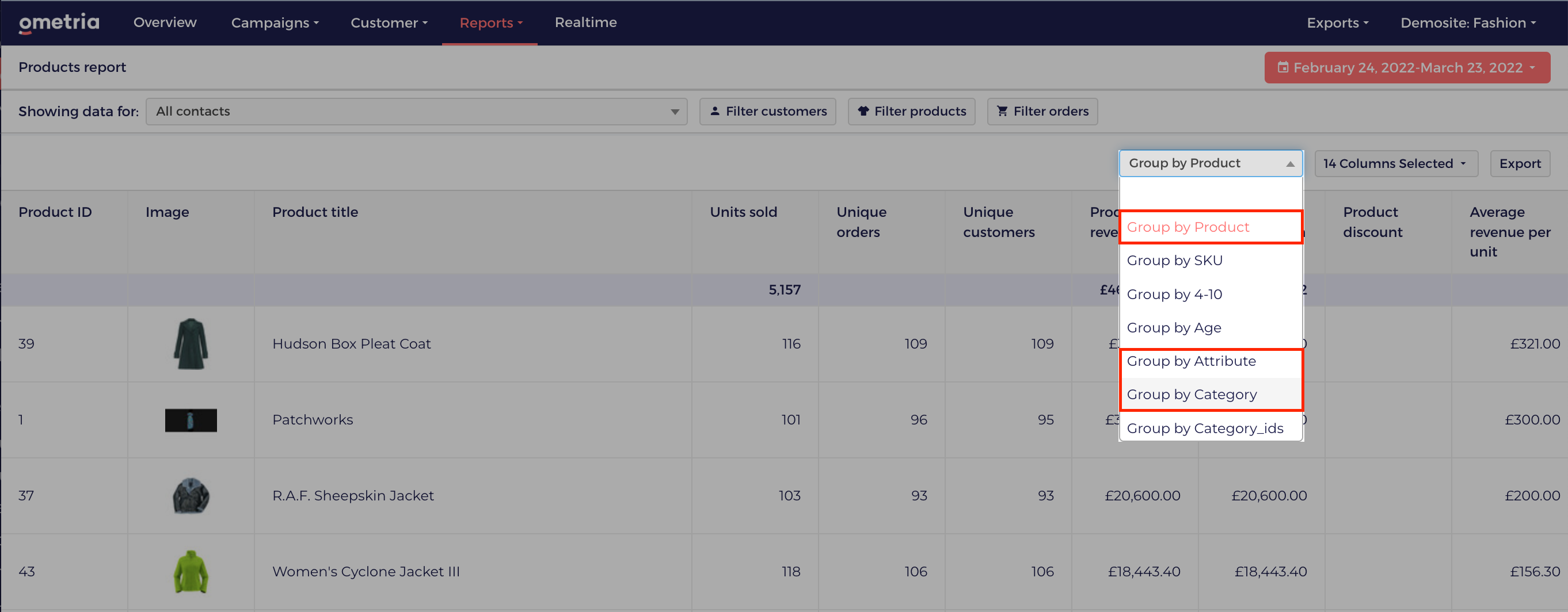
Are your Facebook leads buying different products when compared to non-Facebook leads?
Go to the Products report and use:
- the customer filter to look for contacts who came from Facebook vs. those who didn't, and;
- The orders filter by Order customer sequence = 1.
You can then Group by Product or Group by Category/Attribute to analyse your metrics further.
 Using Facebook Lead Ads Testing Tool
You can use the Facebook Lead Ads Testing Tool to test and troubleshoot your Facebook leads integration with Ometria.
Go to the Lead Ads Testing Tool here: https://developers.facebook.com/tools/lead-ads-testing
You should log in using the same Facebook Business account you used to configure the connection with Ometria.
Use Meta's documentation to navigate the tool and create a test lead: Testing and troubleshooting.
No webhook subscription
If there is no webhook subscription with Lead Ads for the selected page, you'll need to re-authenticate your connection with an Ometria API key.
CRM access revoked
If you see the error message "CRM access has been revoked", you'll need to go to your settings dashboard in your Meta business account and assign leads access to Ometria as a CRM.
Comments
0 comments
Article is closed for comments.